
Introduction
Stream Tools Utilities is a collection of Autodesk Civil3d Plug-ins to extend the functionality of Civil 3D for common processes related to stream restoration and geomorphology
Command Overview
There are two utilities that are available as plug-ins.
Stream Tools REM Utility PROFILETOPOLYLINE
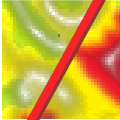
This is the command used to set polyline elevations based on an intersecting alignment/profile. This is helpful when creating reference surfaces for task such as relative elevation mapping and creation of planting zones.
Stream Tools Station Offset Report Utility POINTSTOSTATIONOFFSET

This command is used to generate a report that is plain formatted with the alignment name, station, offset, and elevation of each point in reference to the named alignment. This report then can be filtered or adjusted in a spreadsheet application for analysis using traditional two dimensional methods.
How To Video
Video to coming soon.
Installation
Stream Tools is installed from an installation file downloaded through the Autodesk App Store. Before installing Stream Tools or any of the utilities please close Civil 3D. If there is a previous version of the tool installed on your machine you may need to remove this first.
If you have a pervious version on your machine goto the Installed apps in Windows and scroll down to find the Stream Tools REM Utilities Installer, click the … and select uninstall. Now you should be able to install using the standard installer.
How to REM Utility
Step 1: An alignment with profile and polylines are needed before the REM Utility can run. The tool expects the polyline to intersect the alignment and have a profile defined at that point.
Step 2: Run the PROFILETOPOLYLINE command by either typing PROFILETOPOLYLINE into the command line or clicking on the Stream Tools Utility Panel on the Add-ins tab. In Version 1.1 if polylines are selected they will be used.
Step 3: If no polylines were selected the utility will prompt the user to select polylines. (If using version 1.0 Steps 3 and 4 are reversed)
Step 4: The tool will prompt the user to select an alignment followed by a profile
Step 5: After pressing enter the tool will try to find the intersection between the polyline and the alignment and if they intersect the value from the profile at the intersection will be set as the profile elevation.
Step 6: The polylines may then be added as breaklines to a surface to develop a surface that represents a reference surface for analysis.
Step 7: A volume surface can be used to compare the reference surface to other surfaces such as existing ground or design surfaces to perform analyses such as relative elevation mapping or planting zones.


 About Us